Collecting applications is only the beginning. Once the application window opens, your enrollment team needs to know which records require review, which families may need follow-up, and whether applications are progressing as expected.
The administrative experience matters just as much before launch and between enrollment cycles. Staff may need to update questions, change deadlines, add programs, or test revised eligibility rules. If those tasks require spreadsheets, custom development, or changes made directly in the live family environment, the software may create work instead of reducing it.
This article focuses on what administrators should be able to do inside an application platform: organize records, control routine settings, prepare for future changes, and safely test configurations. If you are first evaluating what families experience, see our application usability and accessibility guide. If your main concern is varied program rules, see the guide to specialized application workflows.
New to enrollment technology? We've included a plain-language glossary at the end of this article to help explain common application management and enrollment software terms.
Evaluate How Administrators Track and Manage Applications
Once families begin applying, your team needs a way to monitor progress, review submissions, and identify applications that require attention.
For example, some families may have started an application but never submitted it. Others may have submitted their application but still need an eligibility review. Depending on the process, different staff members may be responsible for reviewing applications from particular schools, grades, or programs.
Without a way to organize this information, administrators may have to open individual records or export spreadsheets just to determine what needs to happen next.
When evaluating application software, look for these capabilities that help administrators manage their daily work:
-
Track Application Progress
Distinguish between applications that have been started, submitted, withdrawn, or are awaiting review.
-
Filter and Organize Records
Narrow applications by school, grade, program, status, or other relevant criteria.
-
Identify Applications Requiring Attention
Quickly find incomplete submissions, applications awaiting eligibility review, or records flagged for additional action.
-
Create Reusable Views
Save frequently used filters so administrators can return to the same application groups without recreating searches every day.
-
Coordinate Across Teams
Give staff access to applications relevant to their responsibilities while allowing central administrators to monitor progress across the organization.
-
Test Everyday Administrative Tasks
During a vendor demo, ask staff to find incomplete kindergarten applications at one school or transfer applications awaiting eligibility review. Can they save those filtered results and return to them during daily work?
These capabilities become especially important when different teams are responsible for different schools, grades, or enrollment processes.
SchoolMint Enroll gives administrators visibility into application submission and eligibility statuses, helping them distinguish incomplete applications from those awaiting review or ready for the next stage of enrollment.
Administrators can also use Dynamic Views: customizable, saved views of application records that display information based on selected filters, such as school, grade, application status, or eligibility requirements. Rather than repeatedly searching through all applications, staff can create views tailored to the records they need to monitor and manage.
Dynamic Views can be saved, shared according to user permissions, and set as the default view when accessing an application module. For example, an enrollment coordinator might create a view showing applications awaiting eligibility review, while school-level staff can focus on records relevant to their individual responsibilities.
Understand What Administrators Can Change Without Custom Development
A good application platform shouldn’t require outside development or vendor assistance every time your organization needs to make a change. Adding an application question, updating a deadline, or modifying program requirements should be manageable through the software’s existing configuration tools.
When evaluating vendors, understand the difference between:
Self-Service Configuration
Your administrators can make changes directly using the platform's built-in tools.
Vendor-Assisted Configuration
The software supports the change, but the vendor must help implement it.
Custom Development
The requested functionality doesn't exist in the platform and requires additional software development, potentially increasing costs, timelines, and ongoing maintenance.
Ask vendors to demonstrate a routine change, such as adding a question or updating an application requirement. Can your team make the change independently? How quickly can it take effect? Would it require additional fees or technical support?
This flexibility is particularly valuable as enrollment requirements evolve.
The goal isn’t to eliminate vendor support entirely but instead to have a platform that gives your team control over routine changes without creating unnecessary costs, delays, or dependencies.
How Easily Can the System Adapt to Next Year’s Requirements?
Your organization’s enrollment requirements may look different next year. You might introduce a new program, open another campus, change eligibility rules, or adjust application deadlines. The software you choose should be flexible enough to accommodate those changes without requiring a new development project every enrollment cycle.
During a vendor demonstration, present a realistic scenario: “Next year, we’re introducing a new program with its own application questions, eligibility requirements, and deadline. How would we set that up?”
Look for a demonstration of how the change could be made using the platform’s existing capabilities. Ideally, your administrators can configure the new requirements themselves; vendor-assisted configuration should also be clear about timing and cost.
If accommodating the change would require custom development, ask about the associated costs, implementation timeline, and ongoing maintenance. A platform that depends on new development for routine enrollment changes may become increasingly difficult and expensive to manage.
However, making a change is only part of the process. Your team also needs a reliable way to verify that everything you’ve configured actually works before families begin applying. Can administrators preview updated application forms, test eligibility rules, and walk through the family experience without affecting live applications or sending unintended notifications?
This leads to another important capability: sandbox testing.
Evaluate Whether You Can Safely Test Your Application Before Launching
A sandbox (sometimes called sandbox mode or a test environment) is a separate, non-live version of the enrollment platform where staff can practice using the system. Think of it as a rehearsal space: you can submit sample applications, check how settings work, and catch problems before real families encounter them.
For example, a district might build an application for a dual-language program that has different requirements for kindergarten and middle school. The form could look correct in the editor, but testing might reveal that a required question remains hidden.
Previewing one form step can be useful; completing the entire application as a test family reveals more.
During a vendor demonstration, ask to see how both an administrator and a test family can experience the application in a sandbox. Verify that staff can review flags, eligibility information, and submitted records, and clarify how test settings reach the live environment.
Test Application Changes Before Going Live
SchoolMint Enroll provides a separate sandbox where administrators can test application forms, conditional questions, eligibility settings, and staff workflows without affecting live family applications.
Teams can refresh the sandbox from their existing configuration, test as guardians or staff, and then apply approved changes separately to production.
Explore SchoolMint Enroll →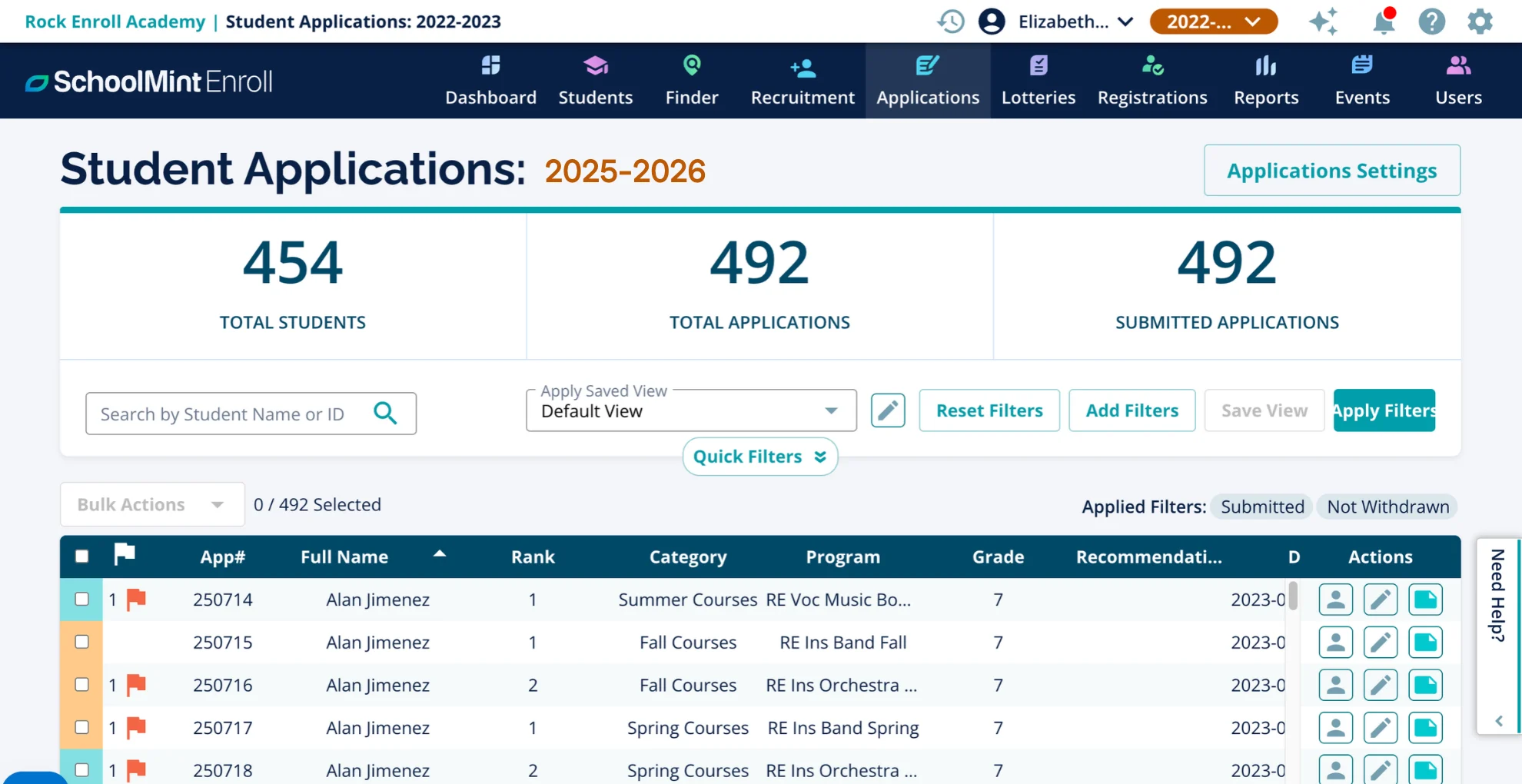 SchoolMint Enroll Premium application dashboard · Click to enlarge
What to Ask During an Administrator-Focused Demonstration
An administrator demonstration should go beyond an overview of menus. Ask the vendor to show how its platform handles a normal day during the application window and a realistic change before the next cycle.
Application Review
A school has started receiving kindergarten applications. Show all applications that are incomplete, submitted, and awaiting review. Filter to one program, save the view, and show which staff can access it.
A Change in Requirements
The organization adds a question to a specialized program's application and moves the deadline. Show which changes an administrator can make and which require vendor assistance or custom development.
Safe Prelaunch Testing
Before families see the updated form, have a test guardian complete it with different answers. Verify that conditional questions, flags, and staff views work as expected. Show how test communications are isolated from real families and explain how approved changes go live.
When comparing platforms, document the answers, not just whether a vendor says a feature exists, but who performs the work, where the setting lives, and what the team will be responsible for maintaining.
Application Management and Testing Evaluation Matrix
Use this checklist to evaluate how well each platform supports day-to-day administration, configuration changes, and prelaunch testing.
Creates visibility.
Can staff distinguish drafts, submissions, withdrawn records, and applications needing review?
Helps teams focus.
Can users filter by school, grade, program, criteria, and status?
Reduces repeated searches.
Can staff save and share filtered lists based on permissions?
Supports different staff responsibilities.
Do teams see only the records and settings they are authorized to access?
Reduces vendor dependence.
Which routine questions, deadlines, and rules can administrators change?
Reveals service needs.
What changes require a support request, additional fees, or professional services?
Supports evolving requirements.
Can staff add a new workflow with existing tools?
Reduces launch risk.
Can guardians and administrators test workflows without affecting live activity?
Prevents unexpected changes.
How are approved, tested updates applied to the live environment?
Avoids manual handoffs.
Does application information remain usable for lottery, placement, offers, and registration?
Turn Your Software Evaluation Into a Launch Plan
A useful application management system should help your team organize real application activity, adapt to changing requirements, and test updates with confidence. These are operational capabilities that matter after the sales demonstration and throughout every enrollment cycle.
Once you know what the platform must support, the next step is working through the decisions your organization needs to make before launch: program dates, application questions, eligibility rules, administrative permissions, integrations, and testing.
Continue with Preparing for a Successful Application Season: An Application Launch Readiness Checklist. The checklist covers 12 areas to review before opening applications and helps you translate vendor-evaluation questions into practical launch requirements.
For related buying considerations, revisit family accessibility and application ease of use or configurability for specialized enrollment processes.
Give Your Enrollment Team More Control With SchoolMint Enroll
From reviewing applications and managing staff access to configuring workflows and testing changes before launch, SchoolMint Enroll gives administrators the tools to manage enrollment with greater visibility and control. With Pro and Premium options based on your organization's needs and complexity, you can choose a solution that supports your team's processes.
Explore how SchoolMint supports application management and the broader enrollment process:
- SchoolMint Enroll brings application management, lotteries, registration, and re-enrollment together, with tools for administrative oversight, configurable workflows, and prelaunch testing.
- Applications & Lottery supports application tracking, eligibility review, configurable selection rules, seat offers, and waitlist management.
- Registration & Re-Enrollment helps administrators manage documentation, monitor registration progress, and guide families through the next steps of enrollment.
- MultApply extends SchoolMint Enroll to support shared application processes across multiple participating schools or organizations.
The right enrollment platform should do more than support your requirements. It should give your team the visibility, flexibility, and confidence to manage those requirements as they evolve.
Talk With SchoolMint About Application ManagementFrequently Asked Questions About Application Management Software
What should an administrator dashboard show?
An administrator dashboard should help staff distinguish application statuses, filter by school or program, identify records needing review, and return to useful lists without repeatedly rebuilding searches.
SchoolMint Enroll supports application statuses and Dynamic Views, allowing administrators to save filtered application views and share them when permissions allow.
During demonstrations, ask vendors to show how an administrator would identify incomplete applications, locate records requiring attention, and monitor activity across the schools or programs they manage.
Can school staff configure applications without custom development?
Many routine changes should be supported through the platform's built-in configuration tools. Ask which settings administrators can edit independently, which require vendor assistance, and which need custom development.
SchoolMint Enroll provides configurable questions, rules, and workflows, though the specific work involved depends on the organization's implementation and permissions.
For organizations managing different application requirements, explore SchoolMint's Applications & Lottery capabilities.
What is a sandbox in school enrollment software?
A sandbox is a separate non-production environment where staff can test configurations and submit sample applications without affecting live records or enrollment activity.
SchoolMint Enroll has a dedicated sandbox for testing guardian and staff workflows, flags, and application settings. Tested changes are applied separately to the live environment after review.
When evaluating vendors, ask whether a sandbox is available, what administrators can test within it, and how approved changes move into the production environment.
Why should we test an application from both the family and staff perspectives?
A form can appear correct in its editor but behave differently when completed by a family. Questions may appear under the wrong conditions, required information may be unclear, or instructions may not match the intended process.
Staff must also verify that the submitted record is categorized correctly, that relevant eligibility information or flags appear, and that the right team can access it.
Testing both perspectives helps identify issues before families begin submitting real applications.
How should application software manage staff access and permissions?
Application software should allow organizations to control which staff members can view records, manage applications, change settings, or perform other administrative actions.
For example, a school-level employee may need access only to applications associated with their campus, while a district administrator may need visibility across multiple schools or programs.
Ask vendors to demonstrate how permissions are assigned, what different staff roles can see and do, and how access can be updated when responsibilities change.
What should we verify before opening an application window?
Before launch, verify that application questions, eligibility rules, dates, required documents, and family-facing instructions reflect your organization's current requirements.
Test realistic family scenarios, confirm that submitted applications appear correctly for staff, review permissions, and check that confirmation messages and other communications work as intended.
For a more detailed preparation process, use our Application Launch Readiness Checklist.
Plain-Language Glossary: Application Administration and Enrollment Software
Evaluating application software also means understanding what your enrollment team can manage, how changes are tested, and how information moves between systems. These definitions explain common administrative and technical terms.
Administrator Configuration and Application Review
Bulk Action
An operation performed on multiple application records at once rather than processing them individually. Examples may include updating statuses, assigning records for review, or sending communications to a selected group of families.
Configuration
Adjusting software using settings, tools, and options already built into the platform, rather than creating new code. For application management, configuration may include changing forms, questions, eligibility rules, deadlines, permissions, and workflow steps.
Custom Development
Software changes or functionality created beyond the platform's existing configuration options. Custom development may require additional engineering work, vendor involvement, implementation time, or cost. Buyers should distinguish what can be configured from what requires development.
Data Validation
Rules or checks used to determine whether information entered into an application meets defined requirements. Examples include requiring certain fields, checking date formats, or preventing submission when necessary information is missing.
Dynamic View
A way for administrators to view a changing group of records based on selected criteria, such as application status, school, grade, or a field requiring attention. As records change, a dynamic view can reflect the updated results without requiring staff to reconstruct the same search.
Flag
An indicator attached to an application or student record when defined conditions are met. For example, a flag might identify an application requiring additional review or a record that needs an eligibility check.
Form Builder
A tool used to create or modify digital application forms, typically through an administrative interface. Depending on the platform, a form builder may support different question types, required fields, conditional logic, and program-specific forms.
Role-Based Permissions
Access settings that determine what a staff member can see or change based on their assigned role. For example, a school employee might be allowed to review applications for their campus, while a district administrator can manage configurations across multiple schools.
Saved View
A saved combination of filters, columns, or other display settings that lets administrators return to a particular set of application records without rebuilding the search. Saved views can help staff regularly monitor incomplete applications, review queues, or program-specific submissions.
Self-Service Administration
The ability for authorized staff to perform routine software-management tasks without depending on a vendor or developer. Examples may include updating application questions, adjusting deadlines, managing permissions, or reviewing reports.
Testing, Environments, and Change Management
Audit Trail
A record of actions or changes made in a system, which may include who performed an action and when it occurred. Audit trails can help administrators investigate changes, review application activity, and support accountability.
Production (Live) Environment
The version of a software platform that real families and staff use for actual applications and enrollment activities. Changes made in production can affect live forms, records, or processes, which is why organizations should evaluate how updates are reviewed and tested before implementation.
Sandbox
A separate, non-production software environment where administrators can test forms, settings, and enrollment workflows without directly changing the live system or sending real family notifications. Depending on the platform, changes made in a sandbox may need to be applied separately to production.
Test Case
A specific scenario used to verify that software behaves as expected. Application test cases might include a family applying for two siblings, a student who does not meet eligibility requirements, an incomplete submission, or a staff member with restricted permissions.
User Acceptance Testing (UAT)
A stage of testing in which the people who will use the software verify that it supports their real-world requirements. For enrollment systems, this may involve staff reviewing application forms, administrative workflows, communications, and unusual cases before launch.
Change Management
The process of planning, communicating, testing, and implementing changes to an organization's software or operating procedures. For application management, this may include approving new form questions, training staff, testing revised eligibility rules, and confirming changes before an application window opens.
Data, Reporting, and System Integrations
Dashboard
A visual summary of information used to monitor application and enrollment activity. Depending on the platform, dashboards may show submission counts, application statuses, incomplete records, or other information staff need to manage their work.
Data Export
The process of downloading or transferring information from a software platform into another format or system, such as a spreadsheet or reporting tool. Administrators should evaluate which fields can be exported and whether exports can be filtered to specific records.
Integration
A connection that allows two software systems to exchange information. For example, an enrollment platform may integrate with a student information system so completed registration information can move between systems without requiring staff to manually enter every record.
Record Matching
The process of determining whether incoming information belongs to an existing student or contact record. Matching helps systems update the appropriate record and reduces the risk of creating unnecessary duplicates.
Reporting
The process of organizing and analyzing application or enrollment information to answer operational questions. Reports might show submissions by school, grade, program, application status, or another characteristic relevant to enrollment planning.
Student Information System (SIS)
The system a school or district uses to maintain official student records, such as enrollment details, student demographics, class schedules, and school assignments. An enrollment platform may exchange information with an SIS to help staff maintain accurate records across systems.
Explore SchoolMint Enroll and its enrollment management capabilities.
Sync Error or Exception
A problem that prevents information from transferring successfully between connected systems. Common causes may include missing required data, mismatched records, or field restrictions. Enrollment teams should understand how errors are identified, reported, and resolved.